
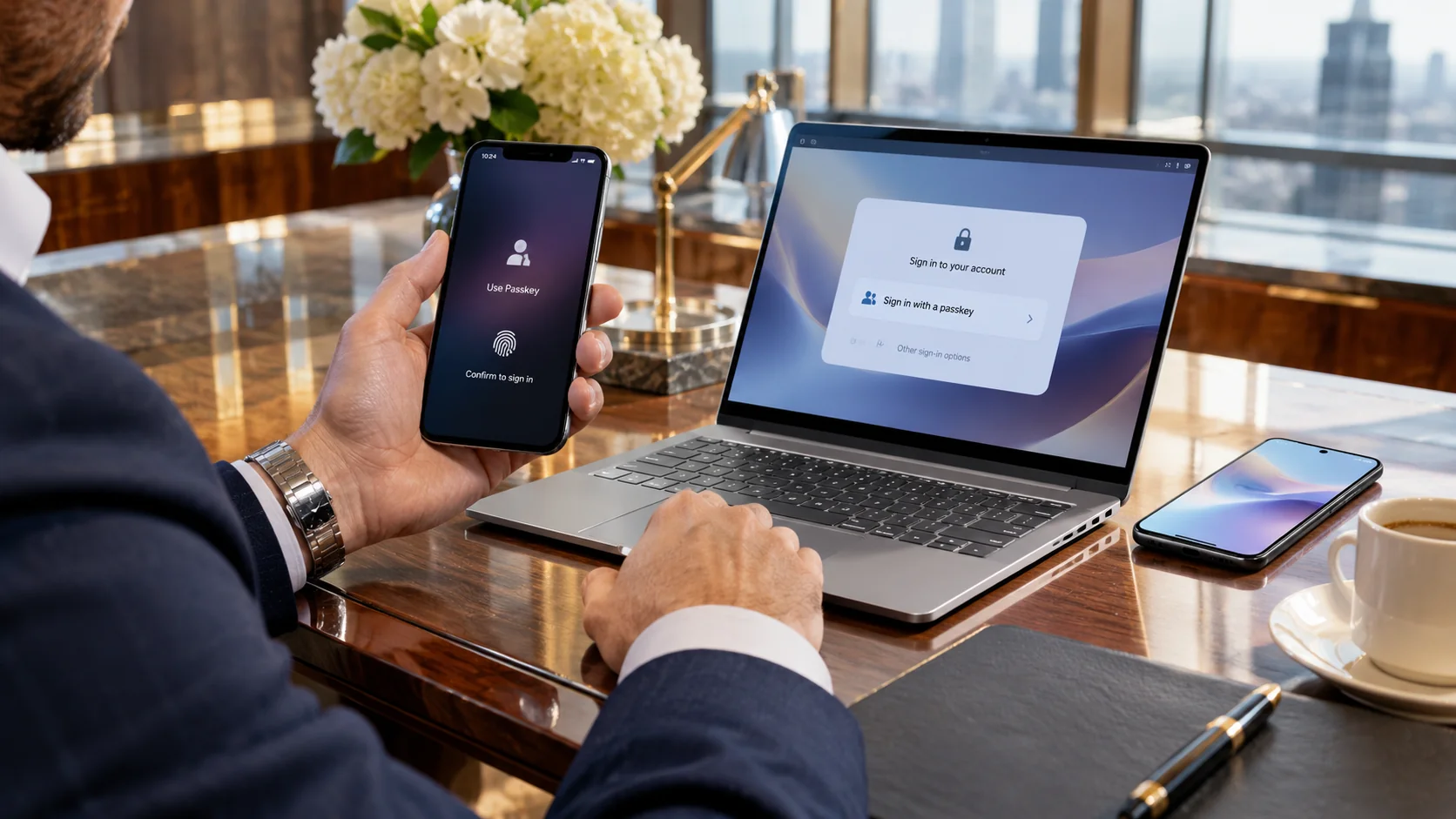
You type your email into a login page and then stall. Was the password the one with the capital letter or the older one? Meanwhile your browser keeps offering a saved password that belongs to a different account entirely.
Passkeys exist to end that little ritual. The fingerprint, face scan or PIN that already unlocks your phone or computer does the job instead.
Setup is simple once you know where the buttons live. The messy part is storage. iPhones, Android phones and Windows PCs don’t all handle passkeys the same way. Even the same website may show different prompts depending on your device or browser.
This guide covers creating a passkey and using it across devices. It also covers the problems that leave people wondering where their login went.
How to Set Up a Passkey: Quick Answer
Sign in to a website or app that supports passkeys and open its account security settings. Common labels include Create a passkey or Add passkey. Some sites call it Passwordless sign in. Follow the prompt to save the passkey on your device or in a supported password manager and then confirm with your fingerprint or face recognition or device PIN.
Exact steps depend on the site and on where you store the passkey. Most modern phones need no special app. You need a compatible device with a working screen lock and an account that offers the feature.
What Is a Passkey and How Does It Work?
Your fingerprint never reaches the website. Neither does your face scan or PIN. Those only unlock the passkey locally on your device and the website receives proof that the right credential was used.
Creating a passkey generates a pair of cryptographic keys. The website holds one of them while the private key stays with your device or whichever credential provider you picked. At your next login the site asks your device to prove it owns the matching private key and you approve with your usual unlock method.
Every passkey is tied to the site or app it was made for. A fake website cannot use your passkey to sign in as though it were the legitimate service. That’s a major advantage over traditional passwords, although phishing attacks can still involve other tricks.
Does Creating a Passkey Remove Your Password?
Creating a passkey does not necessarily remove your existing password. Whether you can keep using it depends on the account provider. Some services keep a password or a recovery option available while the passkey serves as your main login. Others go fully passwordless. Your account security settings will show which version you are dealing with before you delete anything.
What You Need Before Creating a Passkey
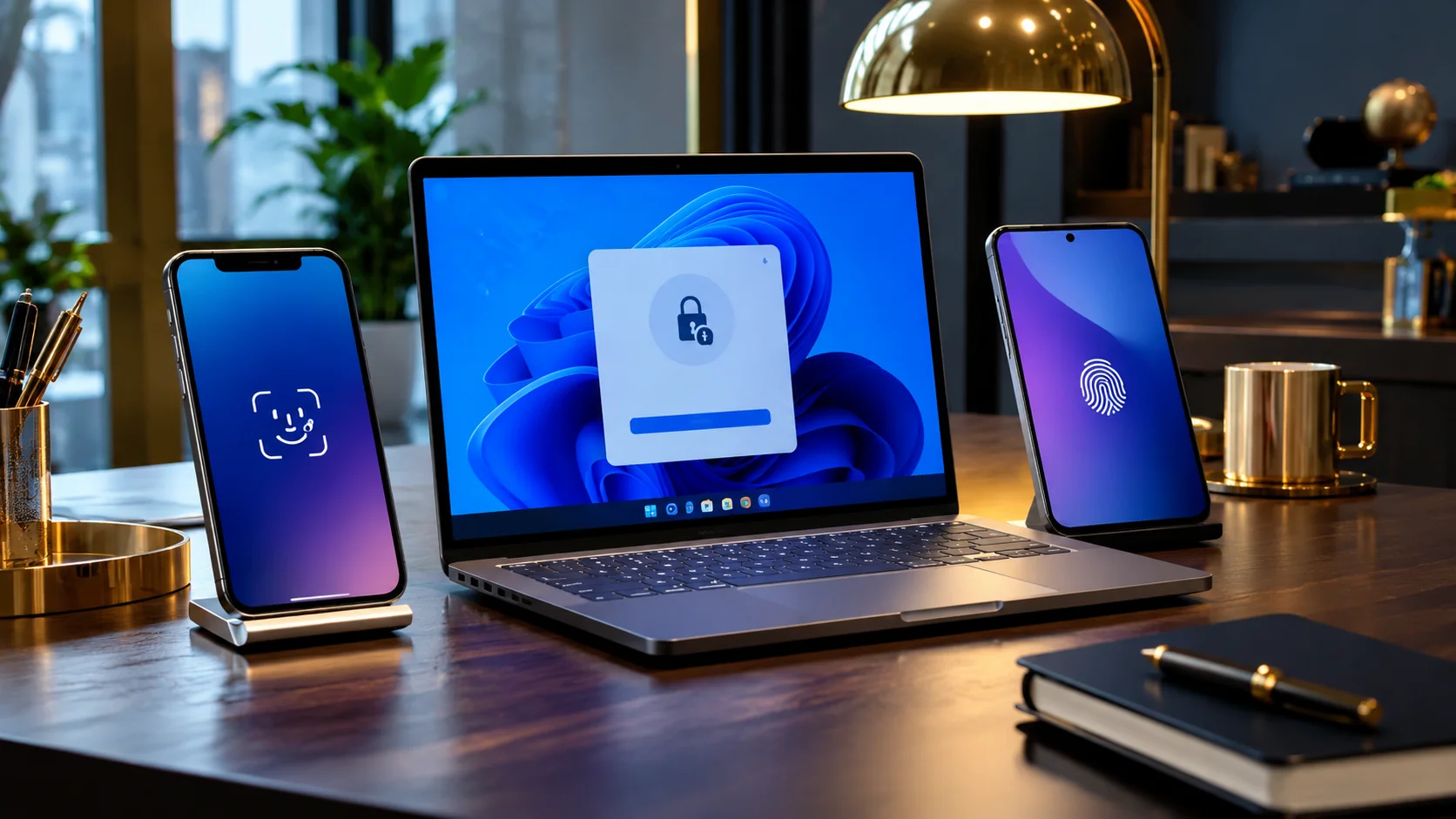
A screen lock comes first. Passkeys normally lean on a PIN, passcode, fingerprint or face unlock that your device supports.
The account itself has to cooperate. A website or app must have passkey registration switched on and you cannot force one onto a service that has not enabled it.
The third item is a place to keep the passkey. Here’s how the common options compare:
| Device | Common passkey storage | How you unlock it |
|---|---|---|
| iPhone | Apple Passwords with iCloud Keychain | Face ID, Touch ID or device passcode |
| Android | Google Password Manager or another supported provider | Fingerprint, face unlock, PIN, pattern or password |
| Windows 11 | Windows Hello or a supported password manager | Windows Hello face, fingerprint or PIN |
A hardware security key is another option.
If you already use a password manager it is worth checking whether it handles passkeys and how it syncs them. A passkey in a syncing manager may turn up on your other compatible devices. One saved locally through Windows Hello generally stays on that computer.
How to Set Up Passkeys on iPhone
Apple’s built in passkey features need iOS 16 or later. Your phone also needs a passcode.
Syncing through iCloud Keychain adds two more requirements. Two factor authentication must be enabled for your Apple Account and iCloud Keychain has to be turned on. Newer iOS versions manage passwords and passkeys inside the Passwords app and another supported credential manager will look different.
Now pick an account you already use:
- Open the website or its official app and sign in the usual way.
- In the account settings, look for Security, Sign-in options or Passkeys. A few sites offer to make a passkey automatically during login; others wait for you to ask.
- Choose the passkey creation option and tap Continue when iOS asks about saving it.
- Confirm with Face ID, Touch ID or your iPhone passcode.
The website now holds the public key it needs and your chosen provider keeps the matching passkey.
Next time you visit the site:
- Open its login page and pick your account or type your email if it asks.
- Select the passkey option if it does not appear on its own.
- Approve with Face ID, Touch ID or your passcode.
No account password gets typed. Prompt wording shifts from site to site.
Saved passkeys live in the Passwords app under Passkeys. Tap an account there to see its entry and management options. Deleting a passkey from your iPhone does not always remove it from the sign in methods registered on the website. Apple walks through the process in its official iPhone passkey instructions.
How to Set Up Passkeys on Android
Google Password Manager is one of the main storage options on Android. Google lists Android 9.0 or later and an enabled screen lock as the requirements for passkeys kept there. Samsung and Pixel phones and other brands show slightly different settings menus but the account side works the same way.
Check your phone settings for a PIN or pattern or password or a supported biometric unlock. Without a working screen lock you may be unable to save a passkey in Google Password Manager at all.
From there, create the passkey:
- Open Chrome or the service’s official Android app and sign in.
- Look for the passkey option in its security settings, or follow the prompt if the service offers one.
- When Google Password Manager offers to create and store a passkey, select Create.
- Look over the account and save location shown.
- Confirm with your screen lock and wait for the message saying the passkey was saved.
Supported devices can use it for future logins.
One documented route to your saved passkeys starts in Chrome:
- Tap the three-dot menu and open Settings.
- Select Autofill and passwords.
- Open Google Password Manager and find your passkeys.
The Google Password Manager app also works on devices that have it. A phone running a different credential provider will keep passkeys in that provider’s app.
Your Google Account makes a handy practice run because Google gives it a dedicated settings page:
- Go to Google Account passkey settings on a device you personally own and sign in.
- Complete identity verification if it asks.
- Select Create a passkey.
- Confirm with your device unlock method.
An eligible Android device may already have registered one automatically, so look at the existing entries before making another. Google explains these options in its official passkey help guide.
Anyone who can unlock a device holding your Google Account passkey may be able to use it to reach your account. Shared computers and borrowed phones are therefore the wrong place to create one.
How to Set Up Passkeys on Windows 11
Windows can keep a passkey locally through Windows Hello or hand it to a supported synced password manager. A compatible phone or a hardware security key can hold one too. Windows Hello suits a PC you use every day while a synced provider suits anyone who wants credentials on several devices.
To create a passkey through Windows:
- Open Settings → Accounts → Sign-in options and set up a Windows Hello PIN. Face or fingerprint recognition may appear as well depending on your hardware.
- Visit a website with passkey support, sign in and find its passkey creation option.
- Review the save-location prompt in Windows or your browser. It might offer the Windows device, a password manager, another device or a security key.
- If you choose the Windows device, confirm with your Windows Hello PIN, fingerprint or face. If you choose a synced password manager, follow that provider’s own steps.
Windows Hello handles authentication for a passkey stored locally. A passkey saved this way does not appear on other computers where you log in. What you see during creation depends on your Windows version, browser and installed passkey providers.
Locally saved passkeys sit under Settings then Accounts then Passkeys. Supported Windows versions also offer Advanced options there for managing passkey services and providers. Passkeys kept in a separate cloud password manager will not show up in this list since the relevant provider manages them.
A personal Microsoft account has its own route:
- Open Microsoft account security options and sign in.
- Select Add a new way to sign in or verify.
- Choose Face, Fingerprint, PIN, or Security Key.
- Pick where the passkey should live and finish the confirmation.
Microsoft documents the current process in its passkey creation guide. Work and school accounts run differently since you may have to open your organization’s Security info page and your administrator can restrict which methods you register.
How to Use a Phone Passkey on a Computer
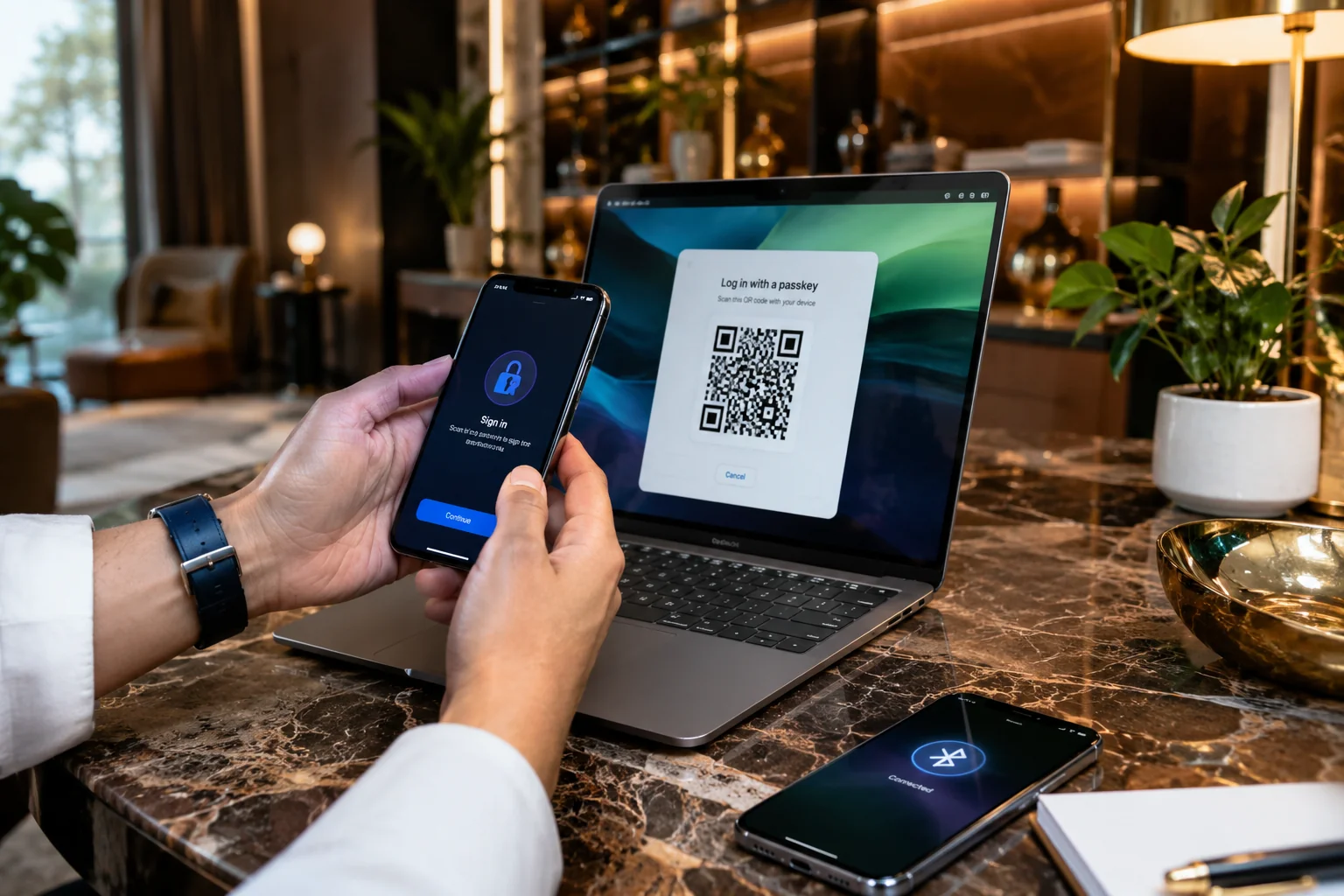
Say you made a passkey on your phone and now you are sitting at a Windows computer wanting the same account. A second passkey is usually unnecessary because many supported sites and browsers let a nearby phone do the authenticating.
To use your phone’s passkey on a computer:
- Open the site’s login page on the computer and enter your account name if required.
- Choose Use a passkey, Try another way or Use a phone or tablet, depending on what shows up.
- Follow the prompts until a QR code appears, then scan it with your phone.
- Approve the login on your phone using its normal unlock method.
Some sign-in processes need Bluetooth enabled on both devices, which should stay close together. The first time may also ask you to approve a nearby-device connection.
Your private credential stays on the phone throughout and the computer only receives the authentication result.
An iPhone passkey works on a Windows computer through this same QR code flow in supported cases.
Why Your Passkey May Be Missing From Your Laptop
Where it was saved matters most. A passkey in iCloud Keychain or Google Password Manager or another synced provider can appear on compatible devices using that provider. A passkey saved locally through Windows Hello does not automatically sync to another PC. Passkeys stored through a supported syncing provider may behave differently. A site that does not support your browser or sign in method may also leave you with some other authentication option.
What Happens If You Lose Your Phone?
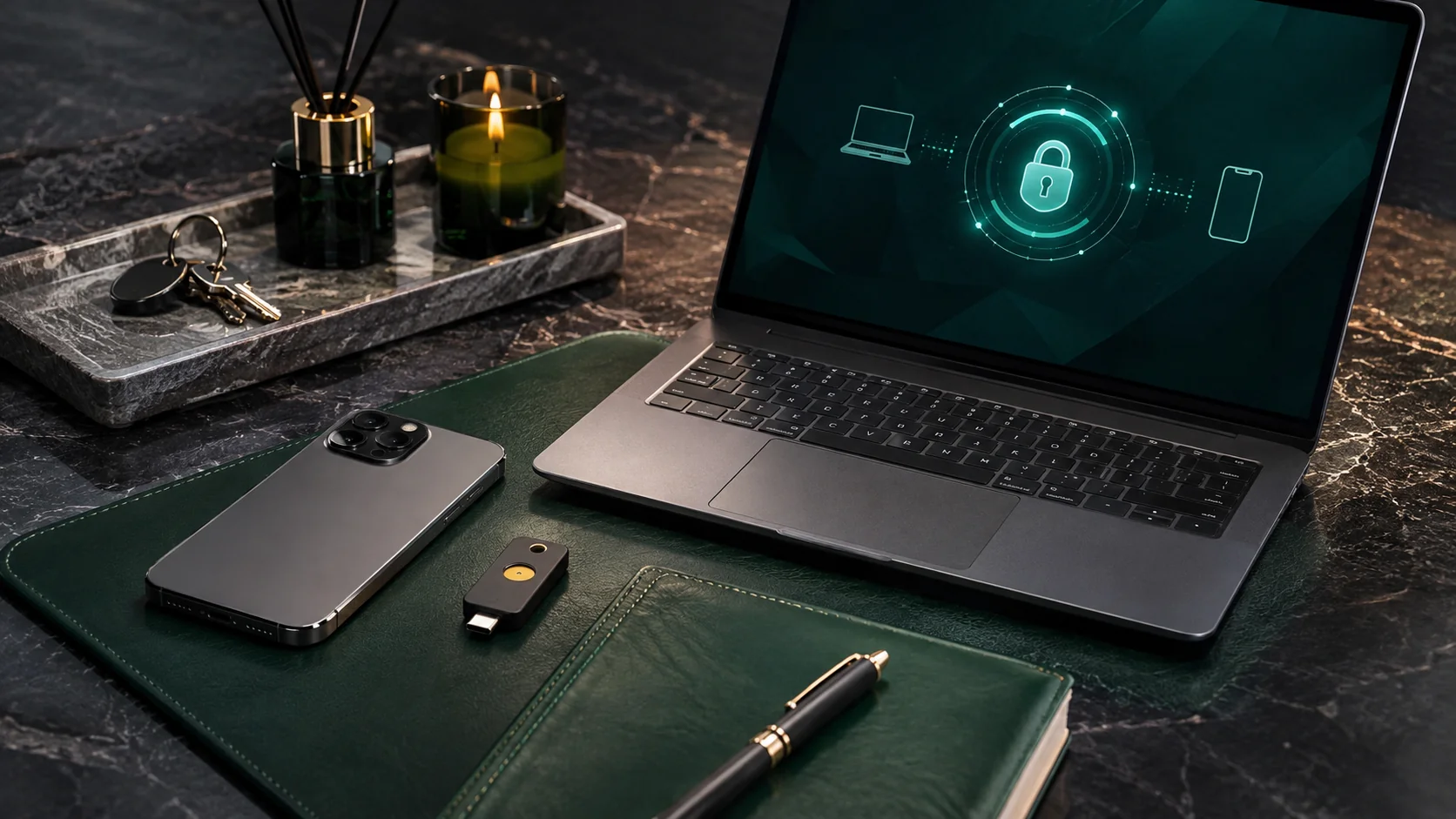
A lost phone is stressful enough without wondering whether every online account went with it. Passkeys do not always vanish along with the device but recovery depends on how you saved them.
Passkeys in a supported syncing manager may come back on a replacement device once you regain access to the relevant account and pass the provider’s security checks. Google documents recovery through a new Android device using the right Google Account and verification details. Apple’s iCloud Keychain can make saved passkeys available on other eligible devices signed in to the same Apple Account. Neither process is automatic in every situation.
A passkey saved on only one device is a different story. A Windows Hello passkey has no synced backup so a lost computer may mean falling back on another registered passkey or a security key or whatever recovery method the website provides.
While you still have account access, the sequence goes like this:
- Sign in from another trusted device or through a supported recovery method.
- Review the registered passkeys and connected devices.
- Remove the lost device’s credential or session where appropriate.
- Create a fresh passkey on a device you control.
- Confirm the new passkey works before deleting any remaining recovery option.
A Google Account lets you review passkeys through its security settings and automatically registered Android passkeys may call for a look at the device sessions tied to them.
Changing phones or moving between password managers carries the same risk. Deleting your only working sign in method before you know how to get back in locks you out.
Passkey Not Working? Common Fixes
Most passkey trouble has a dull explanation. The credential usually sits somewhere other than where you are looking or the website offers a sign in method your device cannot use.
A missing Create passkey option often means the site has not rolled the feature out to your account. Some services enable it gradually or limit it to certain account types or bury it under advanced security settings. An administrator may control it on a work or school account.
A passkey that refuses to show up could be sitting in a different credential manager. One stored in Google Password Manager may not appear in the Windows list of locally saved passkeys. Your browser also needs access to the provider you expect.
QR code trouble deserves a closer look at Bluetooth and distance and browser support. An expired code calls for restarting the login to generate a new one. Selecting the phone or tablet option again beats scanning the old code repeatedly.
After a phone change the question is whether the original passkey synced or stayed on the old device. A synced one returns when you sign in to the same credential provider on the new phone and finish its recovery steps. A device bound one needs another authentication or recovery method.
Windows refusing to save a passkey points to Windows Hello setup first. Then look at the save location and browser prompts and available providers. On supported Windows 11 versions the route is Settings then Accounts then Passkeys then Advanced options where you can inspect provider settings. Workplace policies sometimes restrict credential storage as well.
Google asking for a password does not prove your passkey is broken. The account may want extra verification or the passkey may be unavailable on that particular device. Look for Try another way or another passkey option. Google also says a newly created passkey can take up to seven days to become usable for sign in under certain circumstances. That is far from normal setup time but it explains a few odd cases.
Passkeys vs Passwords vs Two-Factor Authentication
A password is a secret you know and type into a form. Two factor authentication piles another step on top such as an authenticator app prompt or a security code depending on the service. A passkey runs on a cryptographic credential plus a local check on your device which gives strong authentication without a separate website password to remember.
The credential is bound to the legitimate site or app and that is where the phishing resistance comes from. Other security habits keep their value all the same. Your device lock and account recovery options and any suspicious account activity still deserve attention. Your digital footprint matters here too since it shows how much account and personal information sits across different services.
Common Passkey Mistakes to Avoid
Creating a passkey on a shared device tops the list because whoever can unlock that device may be able to use the credential. Keep important account passkeys to devices you trust.
Plenty of people assume every passkey syncs. Some stay on the device where they were born.
Deleting old sign in methods right away is another trap. A new passkey needs testing and you need a confirmed recovery route first.
Your phone PIN and your account password are separate things and the PIN is not normally the secret shared with a website.
Browser security still counts. Unsafe extensions and compromised sessions remain concerns even though passkeys defend against phishing. A separate guide on spotting malicious Chrome extensions covers that corner of browser safety.
Security does not become automatic either since device and recovery settings still need attention.
Frequently Asked Questions
Can one account hold more than one passkey?
Many services allow several so you can register separate devices or supported security keys. Limits and options depend on the provider.
Is a passkey the same as Face ID or a fingerprint?
No. Face ID or a fingerprint unlocks a passkey stored on your device and the passkey itself is the cryptographic credential used for authentication.
What if my device has no fingerprint scanner?
A PIN or passcode or another secure screen lock method works on supported devices.
Can I create a passkey for any website?
Only sites and apps with passkey support can register one. A missing option calls for a look at the service’s official security documentation.
Do passkeys work offline?
Local credential verification does not inherently need a mobile network. Logging in to an online account normally requires the service to be reachable and some cross device flows have connectivity and proximity requirements.
Are passkeys safer than passwords?
They protect strongly against credential phishing and password reuse. Compromised devices and stolen sessions and insecure account recovery remain risks.
What if I forget my passkey?
There is nothing to memorize since your device or credential provider unlocks it. Losing access to that provider means using its supported recovery process or another account sign in method.
Should I delete my password afterward?
Not automatically. Verify that the passkey works first and check which alternative access and recovery methods the service supports. Some accounts keep passwords available even after passkeys are enabled.
Final Takeaway: Where to Start
Setting up a passkey usually takes less effort than figuring out where it gets saved. iPhone owners have Apple’s Passwords app with iCloud Keychain. Android users create and manage passkeys through Google Password Manager. Windows users pick between local Windows Hello storage and supported syncing providers.
One important account on a device you personally own makes a good first target. Create the passkey and sign out once that is safe and then sign back in to confirm it works. Your recovery options come next and everything else can wait. Nobody has to move every account in one afternoon so a service you use regularly is a fine place to learn how its passkey behaves.



Comments
0 discussionsAdd your perspective, reply to other readers, and keep the conversation useful.
Conversation
Reader responses