
Watching an empty Gmail inbox while you wait on something important is maddening. You know the message was sent. It just never shows up.
A silent inbox rarely means your account is broken. The email might be sitting in Spam, a filter might have moved it somewhere else, or your Google storage could be full. On a phone, a Gmail app that has stopped syncing can create the same problem.
What matters most is finding where the message vanishes. If it is missing on your computer and your phone alike, Gmail itself is the place to dig. If it shows up on the web but never on your phone, synchronization is the more likely culprit.
Here are the fixes in the order that saves the most time.
Open Gmail in a browser first
Sign in to the same account on the web and send yourself a test email from another address.
A test message that lands on your computer but never reaches the Gmail app means the account is receiving mail and the app or its sync is the troublemaker. A message that appears nowhere sends you on to the checks below.
This is also why checking Gmail on a computer first is useful when troubleshooting mobile sync problems: it tells you whether the account works normally outside the app.
Search everything
Gmail can hold an email without showing it in the main Inbox. Type the sender's address, the subject, or any phrase you remember into the search bar on a computer. If the message seems to have disappeared, search across Mail & Spam & Trash as well.
Spam and Trash catch more legitimate mail than you would expect. All Mail deserves a glance too, along with Promotions and the other category tabs. If you find a genuine message in Spam, use the Not spam option to move it back.
Often, the email is already in your account. It has simply been moved somewhere you weren't looking.
A full Google account can block mail
Gmail shares one storage pool with Google Drive and Google Photos. Once the account reaches its limit, you may be unable to send or receive Gmail messages, and mail sent to you can bounce back to the sender.
Deleting a couple of emails may not make much difference if a large Photos or Drive library is using most of the space. Spam and Trash count toward the total too, so emptying them can free up storage.
If WhatsApp backups are also using your Google storage, our guide to WhatsApp backups explains how to check backup settings and troubleshoot storage-related problems.
Old messages with large attachments are another good place to look. After clearing some space, send yourself a fresh test message and see whether delivery has resumed.
Check your Gmail filters
A Gmail filter can pull incoming messages out of your Inbox without making it obvious that anything happened.
On a computer, go to Settings → See all settings → Filters and Blocked Addresses.
Pay particular attention to rules using actions such as Delete it, Skip the Inbox, or Archive it. Any filter that could match the missing emails should be edited or removed.
If messages from one particular sender keep disappearing, this is one of the first places to check.
Check forwarding settings
Open the Forwarding section in Gmail settings and look at the address listed there.
A forwarding address you do not recognize is a red flag. Disable it and review your Google Account security, particularly if you never set up the forwarding yourself.
This check becomes even more important if your emails stopped arriving shortly after you changed settings or connected another email service.
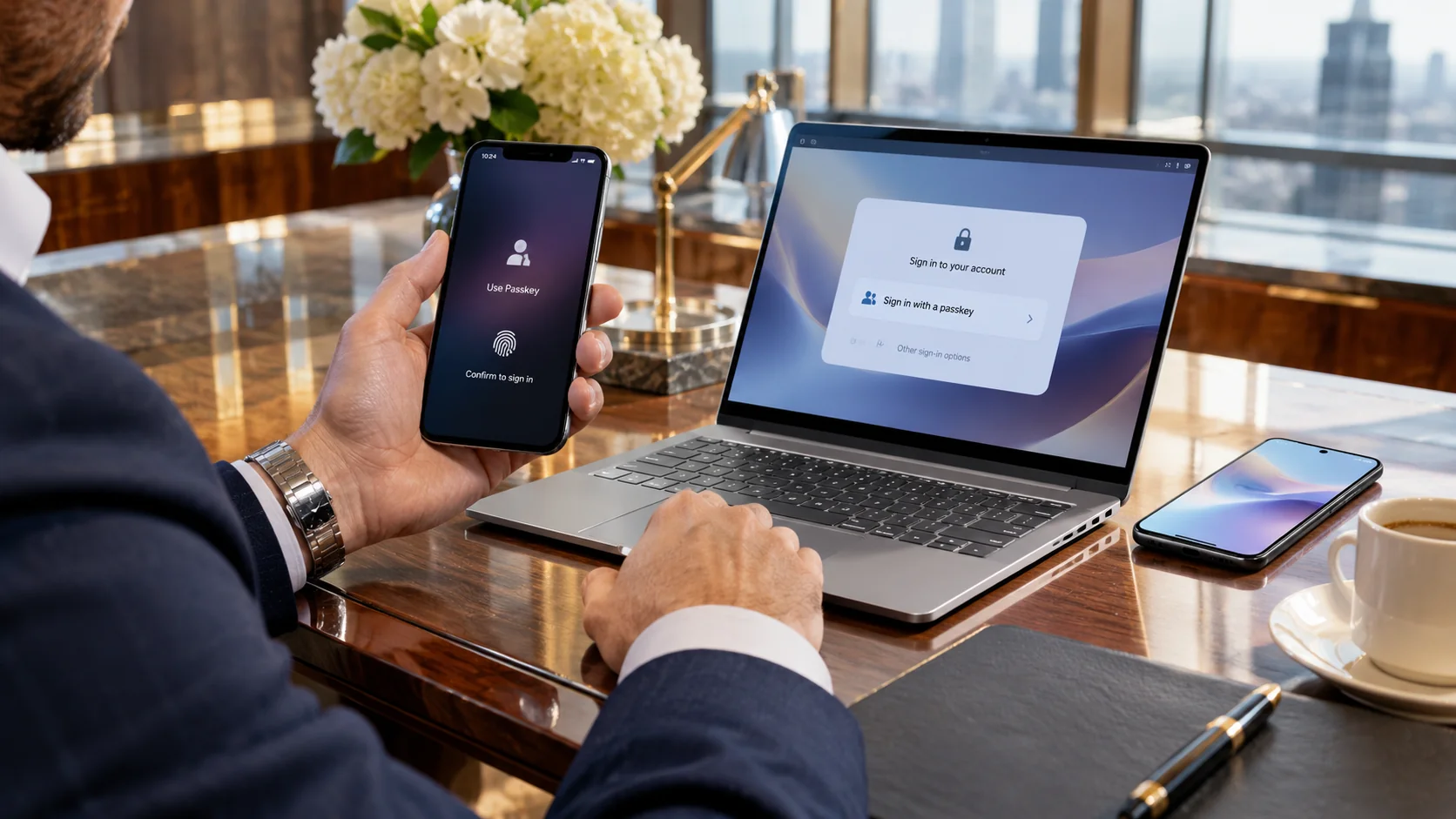
To strengthen your account sign-in security, learn how to set up passkeys on iPhone, Android and Windows.
When Outlook or Apple Mail interferes
Reading Gmail through Apple Mail, Outlook, or another desktop client adds another variable. Depending on its configuration, that client can archive or delete messages.
Messages that appear briefly and then disappear can be a sign. So can seeing mail in one application but not another.
Check the account settings inside the other email program. If you have connected third-party apps or services you no longer use, review their access as well.
Android phone out of sync
Gmail might work normally in your browser while the Android app stays stale. If that happens, leave your emails and account settings alone for the moment and check synchronization.
Open the Gmail app and go to Menu → Settings → your account → Sync Gmail. Make sure the setting is enabled, then pull down on the message list to trigger a manual refresh.
Also check your internet connection, update the Gmail app, restart the phone, and make sure device synchronization is working normally.
If new messages appear only after you open Gmail, a sync or background activity problem is worth investigating.
iPhone: use the Safari test
The first question on an iPhone is the same one: Does Gmail receive the message on the web?
Open Safari, sign in to Gmail, and send yourself another test message.
If it appears in the browser but not in the Gmail app or the Mail setup on your phone, the Gmail account itself is receiving messages. The problem is more likely to be the app or the phone's account synchronization.
If the message is missing from the browser too, go back to the account-level checks: storage, Spam, filters, forwarding, and connected mail clients.
That simple split can save a lot of pointless troubleshooting.
Gmail can send emails but not receive them
Being able to send an email does not necessarily tell you why incoming messages are failing.
Send a test message to your Gmail address from a completely different account, then check Gmail on the web.
If nothing arrives, check your account storage first, followed by Spam and Trash, filters, forwarding, and any connected email applications. If the sender receives a bounce-back message, read the error carefully. It may reveal a delivery problem that has nothing to do with phone synchronization.
Gmail isn't receiving emails from one sender
If messages arrive normally from everyone except one person or company, the problem becomes much easier to narrow down.
Ask the sender to confirm the exact address they are using. Then check your Gmail search, Spam folder, filters, and blocked addresses.
A filter may be moving that person's messages automatically. Their messages could also be rejected or returned to them. If the sender receives a delivery error, the wording of that error can provide an important clue.
Still nothing after all that?
At this point, separate the problem into two possibilities.
Gmail received the email, but you can't find it.
Focus on Search, Spam, Trash, filters, forwarding, and other email clients. Messages can be moved, deleted, or processed somewhere outside the main Inbox.
Gmail never received the email.
Focus on account storage, sender-side delivery errors, forwarding and mail-client settings, and account security. It also matters whether the problem affects every sender or only one.
Refreshing the Gmail app repeatedly will not help if the message never reached your account in the first place.
Leave Gmail app data alone for now
Plenty of online advice says to clear Gmail's storage or app data immediately. That shouldn't be your first move.
Clearing Gmail information can remove drafts, signatures, and other settings. If Gmail works normally in your browser and the phone is the only place where new messages go missing, investigate synchronization before resetting the app.
There is usually no reason to take the most disruptive step before the simpler checks have been ruled out.
A quick way to diagnose the problem
- Email appears on the web but not your phone: check Gmail sync and the mobile app.
- Email is in Spam or Trash: move it back and review your filters.
- Nothing arrives anywhere and storage is full: free Google Account storage first.
- Only one sender is missing: check filters and blocked addresses and ask the sender about delivery errors.
- You don't recognize a forwarding address: disable it and secure your Google Account.
- You use Outlook, Apple Mail, or another client: check whether it is archiving or deleting Gmail messages.
Quick answers to common questions
Why is my Gmail not receiving emails?
Common causes include full Google Account storage, messages landing in Spam or Trash, Gmail filters, forwarding rules, another connected email client, or a synchronization problem in the Gmail app.
Why am I not receiving emails on Gmail but I can send them?
Send a test message from another email address and check Gmail on the web. If nothing arrives, check storage, Spam, filters, forwarding, and connected email clients. A bounce-back message from the sender can also reveal a delivery problem.
Why is Gmail not receiving emails on my phone?
If Gmail works normally in a browser but new messages aren't appearing on your phone, check Gmail synchronization, your internet connection, the app version, and your phone's sync settings.
Why is Gmail not receiving emails from one person?
Check whether the sender's address is blocked, whether a filter is moving their messages, and whether their messages are reaching Spam. Ask the sender whether they received a delivery or bounce-back error.
Can full Google storage stop Gmail from receiving emails?
Yes. When your Google Account reaches its storage limit, Gmail may be unable to send or receive messages. Freeing space across Gmail, Google Drive, and Google Photos can help.
Will deleting emails fix Gmail if it stops receiving messages?
It can help if your Google Account storage is full. Remember that Google storage is shared across services, and Spam and Trash also use storage.
Should I reinstall Gmail if it isn't receiving emails?
Not necessarily. Start by checking whether Gmail receives messages in a web browser. If the browser works, investigate synchronization and app settings before taking more drastic steps.
What should I do if I still can't receive Gmail messages?
If the problem affects every device and you've checked storage, Spam, filters, forwarding, and connected email clients, ask the sender for the exact delivery or bounce-back error. That can show whether the message is failing before it reaches your Gmail account.
One test settles most of it
Send yourself an email from another account and open Gmail on the web.
That single step tells you whether you're dealing with an account problem or a phone synchronization problem. From there, work through storage, Spam, filters, forwarding, and connected email apps.
If Gmail receives messages normally on the web, your emails probably aren't lost. The phone may simply need its syncing sorted.
For more practical technology and app troubleshooting guides, explore our Technology & AI articles.
Comments
0 discussionsAdd your perspective, reply to other readers, and keep the conversation useful.
Conversation
Reader responses