
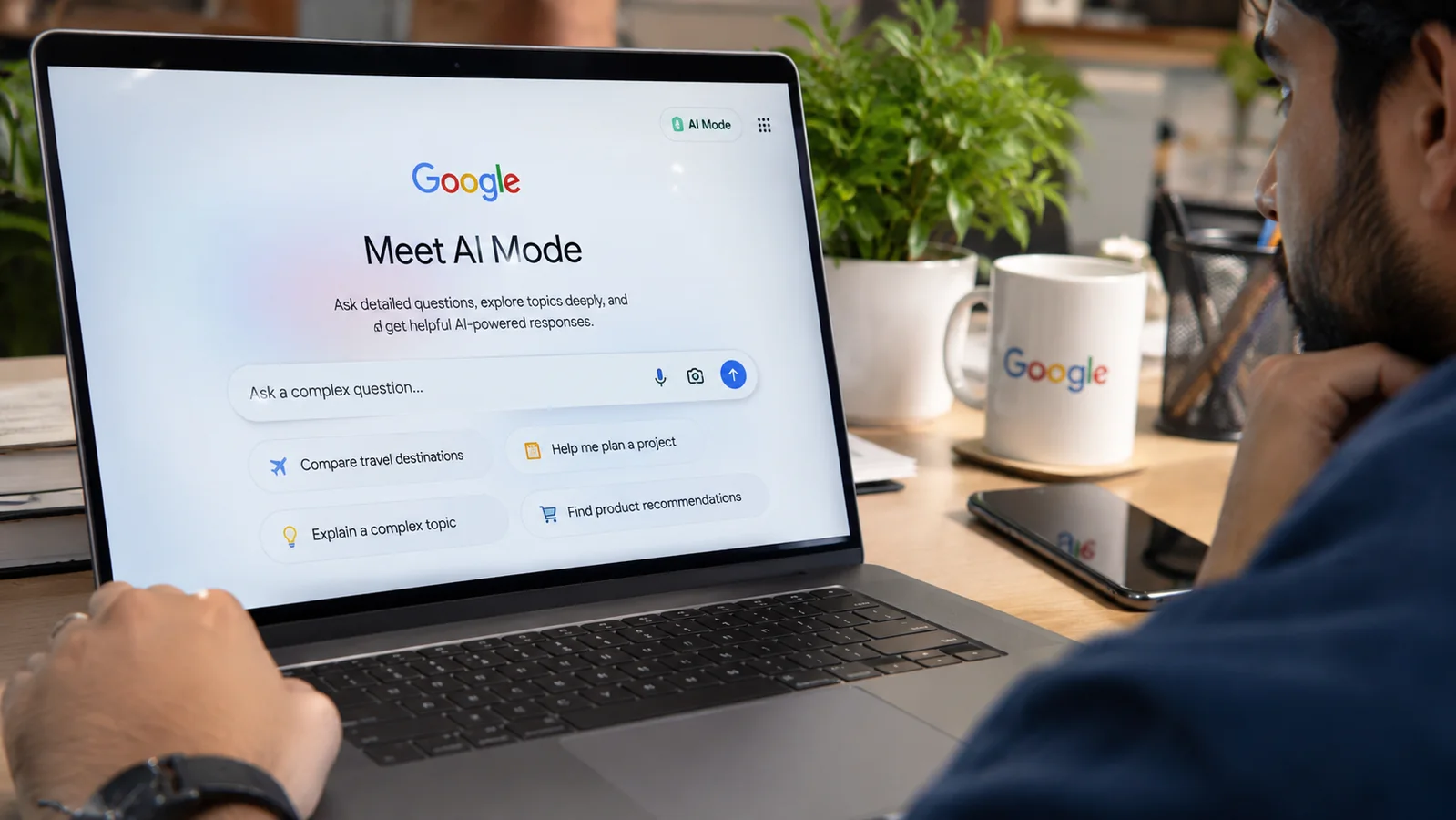
You type a question into Google expecting the usual stack of blue links. A button labeled AI Mode sits there instead. Tap it and the page turns into something closer to a chat.
From there you can ask Google to compare products or break down a tricky topic. A question that would normally eat up several searches goes into one thread. Then you ask the next thing without starting from scratch.
Does it really differ from ordinary search? And how far can you trust what it tells you? Basic access is free in supported regions so the price tag is a smaller concern.
Switching Google AI Mode on is the easy part. Using it well takes more care. This guide covers how it works on desktop and mobile along with the features worth trying and the limits that matter most.
What Is Google AI Mode?
Google folded AI Mode into Search itself. Rather than mostly handing you a list of results it writes a response to your question using information pulled from across the web. Links come along with the answer so you can check the sources and dig further.
The conversation is the big difference.
Say you ask which laptop suits a university student. Once the answer arrives you can ask which ones last longer on battery or whether they run a certain application or which specifications count most. AI Mode carries the thread forward.
Google describes a process called query fan out. A complicated question gets split into smaller related searches and the findings get combined. A neat answer can still be wrong though. The system can misread a page. It can also miss context that matters. Sometimes the answer simply needs a second look.
A research assistant built into Search is the closest comparison.
How to Access Google AI Mode
You don’t need to install a separate AI Mode app to use the standard experience where it is available. Google offers a few doors.
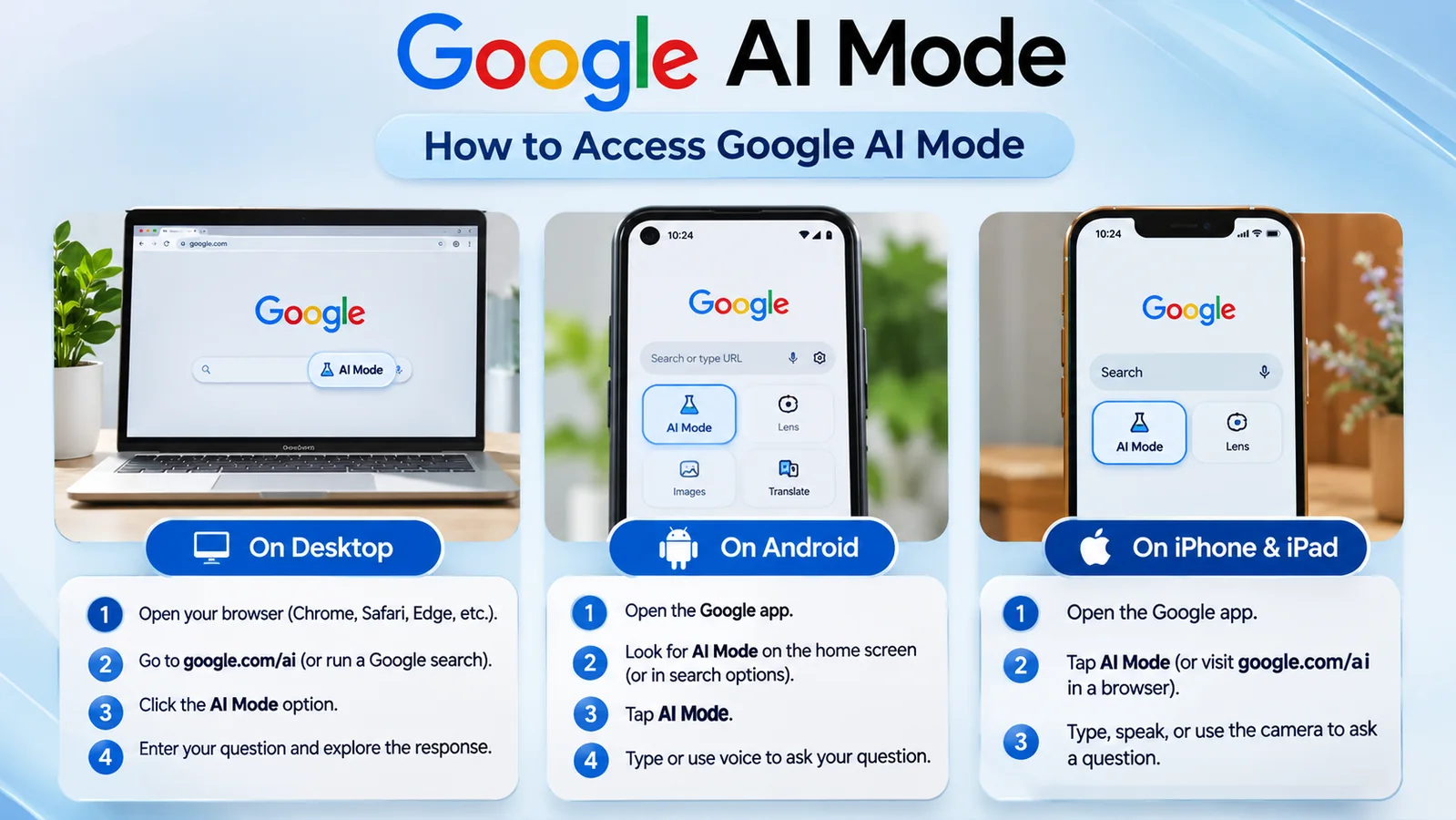
On a desktop or laptop
Open Chrome or any other supported browser such as Safari or Edge and head to google.com/ai. Type your question into the search field and read the response along with the links beneath it. Then type a follow up to keep going.
You can also run a normal search on the regular Google homepage and pick the AI Mode option once it appears.
When you already know which website you want ordinary Google Search is usually quicker. AI Mode earns its place once a question has several moving parts or needs extra explanation.
Android phones
Open the Google app and look for AI Mode on the home screen. Starting a search also surfaces it among the search options. A mobile browser pointed at google.com/ai works too. You can type or tap the microphone when it shows up.
A good first test is asking for the differences between two smartphone features. Then ask which one matters more for photography or battery life. No need to repeat the details from your first question.
iPhone and iPad
iOS follows a similar path. Open the Google app and find AI Mode or use a supported browser with the same URL. Type or speak your question. For image questions use the image or Lens option to share a photo or another visual reference.
Buttons shift between devices and app versions. Google’s official documentation is the place to look if something has moved.
How to Use Google AI Mode
Opening AI Mode takes seconds. A useful answer takes a bit more thought. Describe what you need and give the relevant details. Then use follow up questions to narrow things down.
Start with specifics
A broad question gets a broad answer. Ask “What is the best laptop?” and no single answer exists because budgets and needs differ.
Try this version instead: “Compare lightweight laptops for university students who want long battery life and easy portability on a budget of $800.” Now Google has real constraints to organize the response around.
The same trick applies to travel plans and shopping lists. It works for learning something new or for everyday research too.
Keep the thread going
Say AI Mode suggests several laptops. A follow up works better than a fresh search at that point. Try asking “Which of these options would be easier to carry every day?” Then maybe “Are there important limitations I should know before buying?”
Each question refines the discussion. Follow ups matter most when you don’t yet know which factors count. You can start with a general comparison and slide toward a decision.
When words fall short
Depending on your device you can use image upload or Lens to share a picture. Say you photographed an unfamiliar plant. Typing a long description gets clumsy so upload the image and ask which characteristics could help identify it. Then ask how similar looking plants differ.
Image analysis makes mistakes. When safety or health is involved or a substance might be dangerous qualified sources should make the call. A photograph alone may not give enough evidence for reliable identification.
Documents and webpages
AI Mode takes questions about files including PDFs through documented upload options. That helps when a document holds more than you have time to read right now.
Try “Summarize the main points of this document and identify anything that requires further verification.” Or ask it to “Compare the recommendations in these two sections.” Google also documents the option of giving a webpage URL and asking about its content. Availability and controls depend on your device and account and the current interface.
Some documents carry private information that is better kept confidential.
The step that gets skipped
AI Mode can build a convincing explanation even when part of its reasoning is incomplete. Open the supporting links and see whether a claim really appears in the source. The source also needs to be current.
Product comparisons send you to the manufacturer’s specifications. An upcoming event sends you to its organizer. Financial questions call for authoritative sources. Legal and medical ones do too.
Google AI Mode Features
AI Mode offers more than a chat box. Some features reach everyone. Others appear only in certain countries or on eligible accounts.

Conversational search is the core. You explore one subject through several connected questions. It works well for comparing options or seeing how different factors relate.
Voice questions become possible when the microphone control is available. That helps away from a keyboard or when you need to describe something fast. Glance at the interpreted question before trusting the answer because speech recognition stumbles on unusual names and technical terms. Background noise causes trouble as well.
Image and file understanding gives AI Mode extra context. Share a chart and ask for its main trend. Hand over a photo of a landmark and ask what it is. Or give it a nonconfidential work document to pull out the main topics. How well it goes depends on the quality of the input and how clearly you explain your goal.
Web research with supporting links means AI Mode pulls from several sources. That helps with comparisons or competing explanations. It also gives website owners a reason to understand how AI search finds and presents online information. Our guide to AI search visibility looks at that side and covers how businesses can think about discoverability in AI powered search experiences.
Shopping and connected services are newer. Google has added shopping research and connected applications. Eligible users may compare products or complete supported tasks. Some features depend on your country or language. Age and subscription status can matter along with whether a certain service is connected. An example from a Google product announcement may not appear on your phone yet.
History lets you revisit earlier AI Mode research where it is supported and enabled. That suits product comparisons stretched over several days or a complicated topic worked through across sessions. Saving history ties into account settings and privacy choices. No rule says you have to enable every optional personalization feature just to ask a question.
Is Google AI Mode Free?
Basic access comes without a Google AI subscription in supported regions. Advanced features are another story. Google sells extra AI subscription plans and some advanced models or capabilities carry their own eligibility requirements and usage limits. Availability also shifts with account type and market.
Beginners can start with the standard experience and learn how conversational search and follow ups work before weighing a premium capability. Google’s current plan information is the reliable place to look since prices and daily limits listed in older articles can change.
Google AI Mode vs AI Overviews vs Gemini
AI Mode lives inside Google Search and is built for exploring a question through AI powered search. Follow up questions sit at the center of it. Web information arrives as search integrated responses with links. Research with several parts and product comparisons suit it best.
AI Overviews works differently. It appears within regular search results whenever Google decides an AI generated summary may help. It summarizes certain search topics and follow ups can lead to deeper exploration from there. Meanwhile the web information comes as search summaries and links. A quick overview of a topic is where it shines.
Gemini is Google’s broader AI assistant and it lives in the Gemini app or interface. On the other hand it covers general assistance such as writing or planning. Follow ups are supported and its web information depends on the tools and features available.
| Feature | Google AI Mode | AI Overviews | Gemini |
|---|---|---|---|
| Main purpose | Exploring questions through AI-powered Search | Summarizing certain search topics | General AI assistance such as writing and planning |
| Where it appears | Google Search | Regular Google search results | Gemini app or interface |
| Follow-up questions | Central to the experience | Can lead to deeper exploration | Supported |
| Web information | Search-integrated answers and links | Search summaries and links | Depends on available tools and features |
| Best suited to | Multi-part research and comparisons | Quick topic overviews | Tasks beyond searching |
The lines blur because Google keeps adding AI capabilities across its products. Reach for AI Mode to explore the web through a conversation and use traditional Search when you mainly want websites. A broader assistant fits tasks that stretch beyond searching. Sponsored Post Hub has also covered ChatGPT vs Gemini vs Claude for a wider comparison of standalone assistants.
Why Is Google AI Mode Not Showing?
You open Google and the option simply isn’t there. That doesn’t automatically mean your device has a problem. Several things control whether it appears.

Country comes first. Google maintains official lists of supported countries and languages. Access has expanded a lot but availability can change so the official AI Mode help page is a better reference than any assumption about identical feature sets.
An outdated Google app may show a different interface or lack recent controls so check for an update. On desktop the direct website lets you test access without hunting through the regular results page.
Your account matters too. Some experimental or advanced features need a personal Google Account. Work and school accounts can face different restrictions along with supervised accounts. Administrators may control access to certain Google services on managed accounts.
Search Labs is where Google tests experimental features. A feature that depends on an experiment requires that it is available to your account and that you opted in. Ordinary AI Mode access doesn’t always require turning on a Labs experiment.
Then try google.com/ai. If it fails Google’s official availability documentation and account requirements come next. Third party websites claiming to unlock unavailable Google features deserve a wide berth and no unrelated service needs your Google password.
Google AI Mode Privacy
AI Mode touches your searches and anything you upload. Your account history comes into it too. The privacy picture depends partly on your settings and the features you use.
When supported and enabled, AI Mode history can let you return to earlier conversations. With history saving turned off some continuity or personalization features may disappear. Google documents these controls under Search Services History.
Whether a question gets saved depends on your account settings and Google’s service policies. One disabled setting may not remove every possible record. Reviewing the account settings shows what is stored and which controls exist.
Customer records and financial account details are the obvious red flags before uploading anything. Passwords and confidential business information belong on that list too. Ordinary educational documents can be fine. Private business or personal records call for checking your organization’s policies along with Google’s current data handling documentation first.
To manage history open the applicable Search history or Search Services settings in your Google Account. Saved activity and deletion controls are listed there. Interface and setting names may change as Search services update so Google’s official instructions are more reliable than an older screenshot. Turning off future history saving and deleting stored activity are separate operations.
Google AI Mode Limitations
AI Mode saves time but it can’t handle every question.
Verify anything important because responses can contain factual mistakes. A confident tone can cover a misread source or details combined incorrectly.
Read the original material before repeating a key claim because a link beside an answer doesn’t prove the whole explanation. Sometimes the linked page backs only part of the response.
Prices and product availability shift quickly. Travel restrictions and breaking news do too along with event dates. Official live sources remain essential for these topics even when AI Mode helps with the research.
Medication and legal obligations call for particular care. Financial decisions and personal safety do as well. AI Mode may help you understand terminology and prepare better questions. A high stakes decision shouldn’t rest on it alone.
Connected apps can be limited by geography or account eligibility. Premium models and experimental capabilities face the same limits. A feature in a promotional video carries no promise that it shows up in your interface.
Google AI Mode Prompts to Try
Start with an ordinary question that benefits from several pieces of information.
For learning something try: “Explain how solar panels produce electricity using simple language. Then compare rooftop panels with portable solar panels.”
For travel try: “Compare visiting Rome in April and October based on typical weather and visitor crowds along with major considerations.”
Shopping gets: “Help me compare three types of headphones for commuting. Explain the advantages and disadvantages of each.”
Work might call for: “Explain the difference between a website’s loading speed and its Core Web Vitals. Which measurements should a beginner understand first?”
Research gets: “Summarize the main arguments on both sides of this question and provide sources that I can review.”
A strong follow up is “Which part of your answer is uncertain and what sources should I check?” That single question pushes the research in a more critical direction.
Common Google AI Mode Mistakes
Vague questions top the list. Add your budget or deadline to the prompt whenever one exists. Accepting the first response without opening any sources costs you when the details matter.
Some users decide too fast that a missing feature is gone for good while eligibility by region and account keeps changing. Uploading confidential material casually deserves a second thought since the material may not need sharing at all. Running every search through AI Mode wastes time when a direct website result would be faster and clearer.
Then comes treating an AI generated product comparison as independent testing. Nothing about it means someone physically tested the products.
Frequently Asked Questions
Is Google AI Mode the Same as Gemini?
They differ. AI Mode is a conversational search experience inside Google Search while Gemini is a broader AI assistant. Their underlying technology and certain features can overlap.
How Do I Turn On Google AI Mode?
Visit google.com/ai or select AI Mode inside Google Search where it’s available. Some experimental features may need separate Search Labs enrollment.
Is Google AI Mode Free?
Basic access comes without a paid AI subscription in supported regions. Certain advanced capabilities may need an eligible account or subscription and may carry usage limits.
Can I Use Google AI Mode on iPhone?
It works there in supported regions through the Google app or a compatible mobile browser.
Can Google AI Mode Read PDFs?
Google documents support for questions about uploaded PDFs and other files. Upload methods and eligible account features vary.
Why Is Google AI Mode Missing?
Possible causes include regional availability or account restrictions. Experimental feature eligibility and an outdated app can also be behind it. The direct website and official Google Help documentation are worth checking.
Can I Turn Off Google AI Mode?
Ordinary Google Search stays available. Search Labs controls may let you turn off certain experiments, but they should not be confused with a setting that disables every AI feature in Google Search.
Does Google AI Mode Provide Sources?
AI Mode can include links to supporting websites. A link guarantees nothing about whether every statement has a complete or accurate citation so important claims need independent checking.
Is Google AI Mode Safe for Private Information?
Use caution and review Google’s current data settings before submitting sensitive personal or business information. Confidential material should be shared only where its handling suits your needs.
Is Google AI Mode Better Than Regular Search?
Not in every situation. AI Mode often helps with detailed explanations and comparisons. Regular Search can be more convenient when you want a particular website or a direct result. Independent sources to browse also come easier through regular Search.
Is Google AI Mode Worth Using?
For complicated questions AI Mode offers a convenient way to explore information without repeating several separate searches. The conversational format makes comparing choices and understanding unfamiliar topics simpler. Follow up questions come naturally. Image and file features help certain research tasks too.
Important claims need checking and privacy settings deserve a look. Some advanced functions depend on eligibility. Google AI Mode works best alongside ordinary Search.
For other ways AI can support research and everyday work see Sponsored Post Hub’s guide to the best AI tools for everyday productivity.




Comments
0 discussionsAdd your perspective, reply to other readers, and keep the conversation useful.
Conversation
Reader responses